Showing posts with label applications. Show all posts

Saturday, 18 August 2012

Free PC to mobile call using crowd call

Hi friends this is a new trick which you can use to make a call from PC to mobile for this at
first you have to download 2 files

1 BlueStacks HD AppPlayer Pro (This is an Emulator for Android Application for Windows)
2 CrowdCall 1.0.15 ( Links are below) (This is an Android App which allow you to call other).
link1                            link2                               link3

Features of CrowdCall

  • FREE group/conference calls with people in the US, Canada and over 40 other countries. Super low cost to the rest of the world.
  • Calls are instant – no Signup, no Dial-in number and no PIN number to remember – press the call button and everyone’s phone rings and they are connected.
  • With CrowdCall you have group/conference calls with anyone who has a phone number. They don’t need to have the app to participate in a CrowdCall – they don’t even need a mobile phone!

Steps to do call with Crowd Call

  • Download BlueStacks HD AppPlayer Pro and CrowdCall 1.0.15 from above
  • Install BlueStacks HD AppPlayer Pro and start the AppPlayer by opening Start BlueStacks from desktop or start menu.
  • Now double click on CrowdCall_1.0.15.apk and install it.
  • Now you can see CrowdCall icon on the main screen of BlueStacks HD AppPlayer.
  • Go to settings of BlueStacks HD AppPlayer from bottom right corner and Change App Size of CrowdCall to Tablet
  •  Now come to home screen and open CrowdCall.
  •  From the first screen select your country and enter your mobile number and press OK.
  • Now Close BlueStacks HD AppPlayer window. And Quit BlueStacks HD AppPlayer from TaskBar also.
  •  First of all make sure that BlueStacks HD AppPlayer is completely closed.
  • Now go to C:\ProgramData\BlueStacks\Android for win 7 and copy Data.fs file to safe place as Back Up.
  •  Now feel free to call anyone. Once you get warning of Reached Daily Limit. Just Replace C:\ProgramData\BlueStacks\Android\Data.fs for win 7 with the back upped Data.fs.
  • By replacing file you’re resetting the BlueStacks HD AppPlayer.
  •  Now start calling and have fun as much as you want. No need to reinstall BlueStacks HD AppPlayer ever again.
Note:The Size of Data.fs is 2.00 GB. So keep it safe. It makes your effort and time 95% less
    Read more ...

    Friday, 13 July 2012

    Now Download Google Chrome for iPhone and Android phones


    Now after successful launching of android OS jelly beans for both mobile as well for tablet .This time Google is trying to take the control of market of phones and web browser .Chrome being one of the best browser after Firefox.As Firefox had already launched its application for android and iphone ,Now google chrome is also launched beta version of Google chrome.

    Some Features of Google Chrome beta


    Being one of the fastest browser google chrome shows the same performance on phones too.as we all know google being the best search in the world ,Google chrome is developed such as to maximize compatibility with Google  products like Google search, Google plus, orkut and many more services provided by Google.
    The browser is too fast and very good for web surfing and supports G.P.S navigation with g maps.
    • Search fast
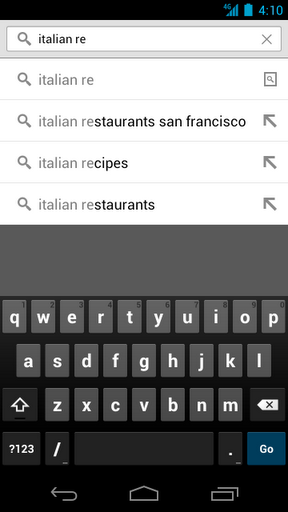
      - Search and navigate fast, directly from the same box. Choose from results that appear as you type.
      -  Browse faster with accelerated page loading, scrolling and zooming.

    • Simple, intuitive experience
      - Open and quickly switch between an unlimited number of tabs. On your phone, flip through tabs the way you would fan a deck of cards. On your tablet, swipe from edge to edge to switch tabs.

    • Sign in
      - Sign in to Chrome to sync your open tabs, bookmarks, passwords, and omnibox data from your computer to your phone or tablet.  Pick up right where you left off.
      - Send pages from Chrome on your computer to Chrome on your phone or tablet with one click and read them on the go, even when you’re offline.

    • Privacy
      - Browse privately in Incognito mode.

    Below are some screen shots taken from the google play website

    https://lh5.googleusercontent.com/-oFFygzKcQ_Y/UAGBH-I0S3I/AAAAAAAADJY/J7CVztwEERw/s512/unnamed.jpg https://lh6.googleusercontent.com/-45YXBoaCVnU/UAGBDLhEVqI/AAAAAAAADI4/-zaEUVS9uUI/s512/unn%2520amed.png
    https://lh3.googleusercontent.com/-iBm3Bt3mXeI/UAGBGCwpyqI/AAAAAAAADJM/tt6dpJuTMo0/s512/unna%2520med.png https://lh4.googleusercontent.com/-jcXGsKtY2ow/UAGBFkVMRtI/AAAAAAAADJE/BECGYfRLQds/s512/unname%2520d.jpg
    https://lh4.googleusercontent.com/-9HIhz7BGbAw/UAGBBr-0M5I/AAAAAAAADIw/XZ5kVBP6Z9U/s512/u%2520nnamed.png
    https://lh3.googleusercontent.com/-RkUJvMpZs9o/UAGBMALJaGI/AAAAAAAADJg/UJFUL-rGQv4/s512/unnamed%2520.jpg
    https://lh4.googleusercontent.com/-HyX-zvtvYDM/UAGBEhSI3ZI/AAAAAAAADJA/Rmc0KxBhdCc/s512/unna%2520med.jpg

      Android watch this video for chrome beta

    Read more ...

    Thursday, 5 July 2012

    How to Hide Pictures & Videos on Android

    Have you ever had to lend your Android phone to someone and then hoped that they didn’t look through your image gallery? Maybe they will find some private pictures that you don’t want them to see! Or how about those pictures of you flexing or posing in front of the mirror? That would be kind of embarrassing! There are so many reasons why someone might want to make their photos on their Android device private. Below I will show you the easiest way to hide photos & videos on your Android device:
    Instructions:

    1. Go the Android Market (AKA Play Store)

    2. Search for the app “Hide Pictures in Vaulty” [Market Link]
    3. Click install on this free app

    4. Launch the Vaulty app
    5. Set a password for the app
    6. Enter a security question (in case you forget password!)
    7. Tap the Gallery tab & open a folder

     8. Click on a picture that you want to hide

    9. Click the hide button

    10. Your picture will now be hidden and availabe in the “Vault”
    11. That’s it! Now just launch the “Vaulty” app the next time you want to see the hidden photos.
    Read more ...

    Tuesday, 3 July 2012

    How to transfer files via WiFi from PC to Android (Wireless)

    In today’s lesson, we will show you how to easily transfer files between Android and your computer. Best of all, we’ll show you how to transfer the files via WiFi without the hassle of having to look for a USB cable or removing the SD card from your Droid. You can follow along on the lesson via the Video tutorial or scroll down to the bottom for the Step-by-Step instructions.
    There’s a lot of different ways to get files to/from your Android device to your computer. But I’ve been searching for the easiest method possible, so that I could teach users of all levels how to do it in a matter of minutes. Luckily, I was able to find a great app that makes transferring files between Android and your computer extremely simple. The app is WebSharingLite [Market Link] and it allows you to connect your Android device and computer together via the WiFi network in your home and/or office. There is no set up needed, just run the WebSharingLite app and it tells you exactly what to enter into any web browser’s URL bar to get there. You’ll then be able to upload/download whatever files you need. File sharing on Android has never been simpler than this! Take a look at the video tutorial below and let us know if you have any questions!

    Video Tutorial
    Step-by-Step Instructions:

    •     Go to the Android Market
    •     Search for “WebSharingLite” app
    •     Install the “WebSharingLite” app by NextApp, Inc.
    • Launch the App and click on the Start button at the bottom left

    • WebSharing will then be activated and you can go to your PC and type in the URL displayed on the screen into your web browser. If prompted, enter the password listed on the screen.
    • That’s it! Start transferring the files you need!
    WebSharingLite not working properly for your device? Try this other great app that is very similar: Wifi File Explorer [Market Link]

    Read more ...